4. Install syslinux and configure pxelinux
For PXE to work we need to have a network boot loader program. We’re
going to use the PXELINUX bootloader, which is part of SYSLINUX. You can
install it via dnf on Rocky Linux.
[root@master ~]# dnf install syslinux syslinux-tftpboot
We’ll need a few specific files from that installation. To find out
where they are located, use the rpm command to display all files
that have been installed by that particular package.
[root@master ~]# rpm -ql syslinux-tftpboot
/tftpboot
...
/tftpboot/menu.c32
...
/tftpboot/pxelinux.0
Copy pxelinux.0, menu.c32, ldlinux.c32 and libutil.c32 into /var/lib/tftpboot.
To see if TFTP is working, go to your home directory and try to download pxelinux.0 using tftp.
[root@master ~]# cd
[root@master ~]# tftp localhost
tftp> get pxelinux.0
tftp> quit
# verify that pxelinux.0 was downloaded into your current directory
Next create the PXELINUX configuration folder:
[root@master ~]# mkdir -p /var/lib/tftpboot/pxelinux.cfg
Finally, create a default configuration file under
/var/lib/tftpboot/pxelinux.cfg/default
DEFAULT menu
PROMPT 0
MENU TITLE ORCA 2026 - Default
TIMEOUT 200
TOTALTIMEOUT 6000
ONTIMEOUT local

LABEL local
        MENU LABEL (local)
        MENU DEFAULT
        LOCALBOOT -1
When PXELINUX launches it will look for configuration files with a specific name in the following order
01-MAC-address(01-DE-AD-BE-EF-09-39)Full 32 bits of the IP address (
C0A81101)Most significant bytes of IP address (
C0A811,C0A8,C0) to capture rangesdefault
Try this by creating a customized Boot Menu for c01. You can use the
gethostip command to determine the 32bit hexadecimal of an IP address:
[root@master ~]# gethostip c01.hpc
c01.hpc 192.168.17.1 C0A81101
Create a file in /var/lib/tftpboot/pxelinux.cfg/ using one of the
above mentioned methods. E.g.,
/var/lib/tftpboot/pxelinux.cfg/C0A81101.
DEFAULT menu
PROMPT 0
MENU TITLE ORCA 2026 - c01
TIMEOUT 200
TOTALTIMEOUT 6000
ONTIMEOUT local

LABEL local
        MENU LABEL (local)
        MENU DEFAULT
        LOCALBOOT -1
Power on the c01 system via IPMI and observe the boot process via the IPMI Serial Console. Verify the correct Boot Menu is shown.
[root@master ~]# ipmiwrap c01 power on
[root@master ~]# ipmiwrap c01 sol activate
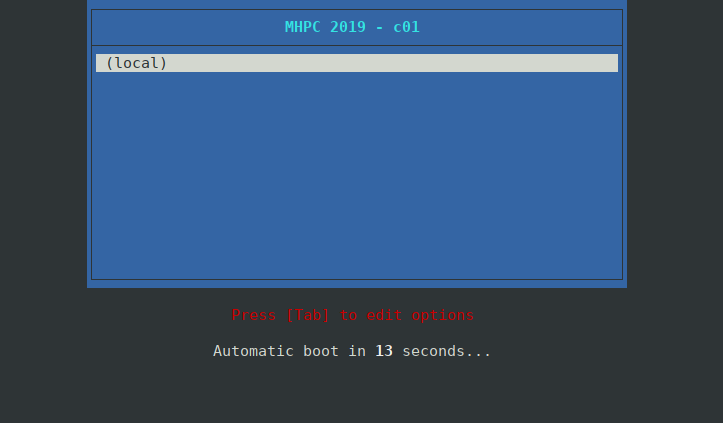
PXELINUX boot screen for c01